
|
|
|
How to type in Japanese - how to use MS-IME
Here will briefly explain how to type in Japanese using MS-IME.
Here will take English keyboard as an example to explain.
The same method is applicable to type in Japanese with keyboards of
other languages provided they can type in alphabets.
Here will introduce "Romaji - Kana" typing.
It is the most common typing method in Japan and Japanese people
usually take this method to type in Japanese.
|
|
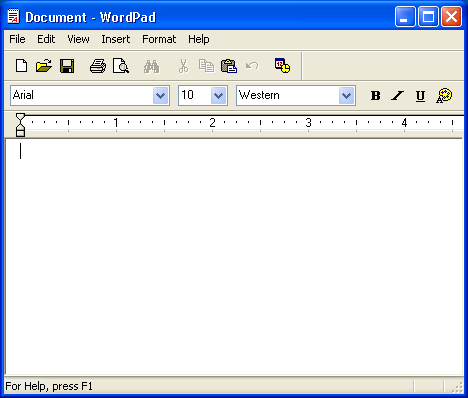
| 1. | Start your word processing software or E-mail software. |
| Here will take WordPad, which is a standard accessory for Windows, as an example. | |
 |
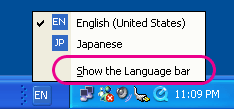
| 2. |
If the "Language bar" is stored on the toolbar click "Show the Language bar" and display it on the desktop. |
 |
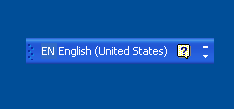
| 3. | "Language bar" will appear on the desktop. |
 |
| 4. | Select Japanese. |
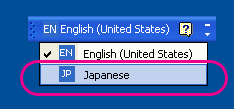 |
| 5. | Language bar will be on Japanese mode. |
 |
| 6. |
Click 
|
 |
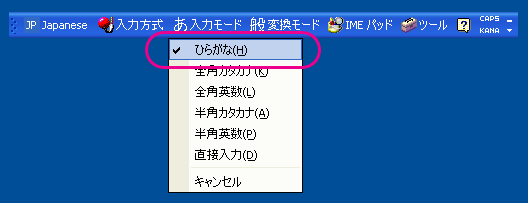
| 7. |
Select 
|
 |
| 8. |
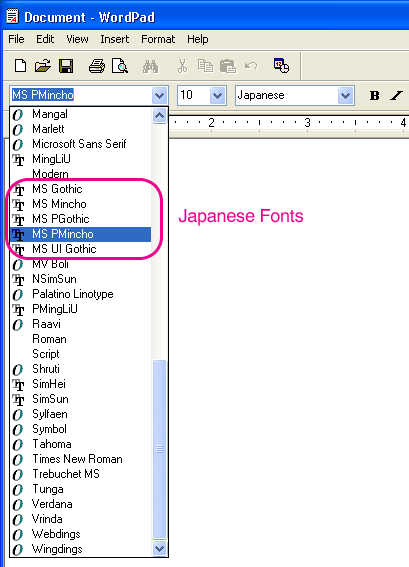
Select  from WordPad font list.
|
It is common to use  for print materials, for print materials,and  for Web sites. for Web sites.
|
|
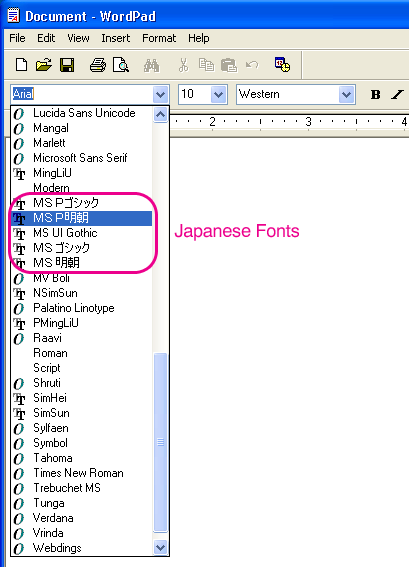
If you did not set "non-Unicode Programs", font names will appear in English.
|
| 9. |
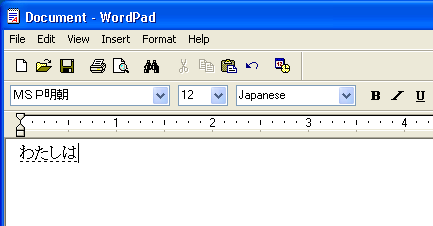
Type "watashiha".  will
appear on the screen in Hiragana. will
appear on the screen in Hiragana.
|
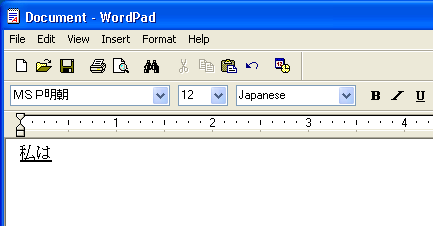
At this point  is underlined. is underlined.
|
|
 |
| 10. |
Press Space key once.  will convert to
|
|
If you press Space key while Hiragana is underlined, Hiragana will be converted to Kanji. |
|
 |
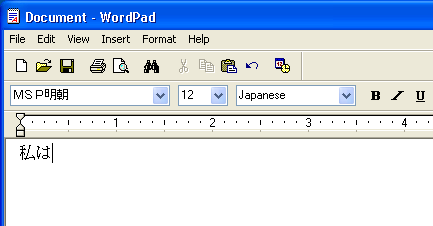
| 11. | Press Enter key. |
| The underline disappears and Japanese characters are typed in the document. | |
 |
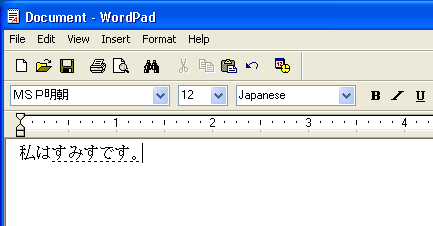
| 12. | Type "sumisudesu." |
 will appear on the screen in Hiragana. will appear on the screen in Hiragana.
|
|
 |
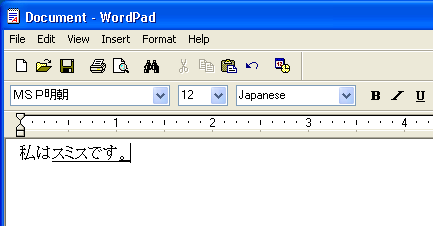
| 13. | Press Space key once. |
 will convert to will convert to
 . .
|
|
 |
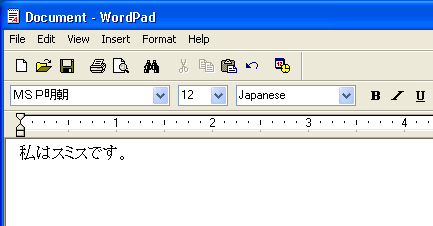
| 14. | Press Enter key. |
| The underline disappears and Japanese characters are typed in the document. | |
 |

|

|

|

|

|

